Always one drag away.
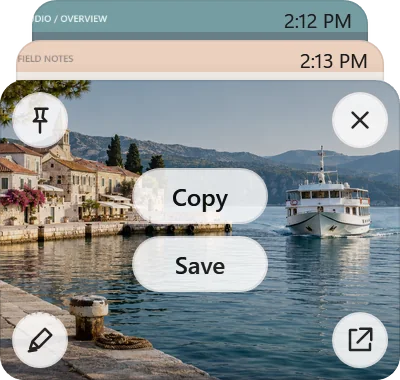
Every capture lands in a small preview, ready to share. Copy it, save it, or drop it straight into any app.
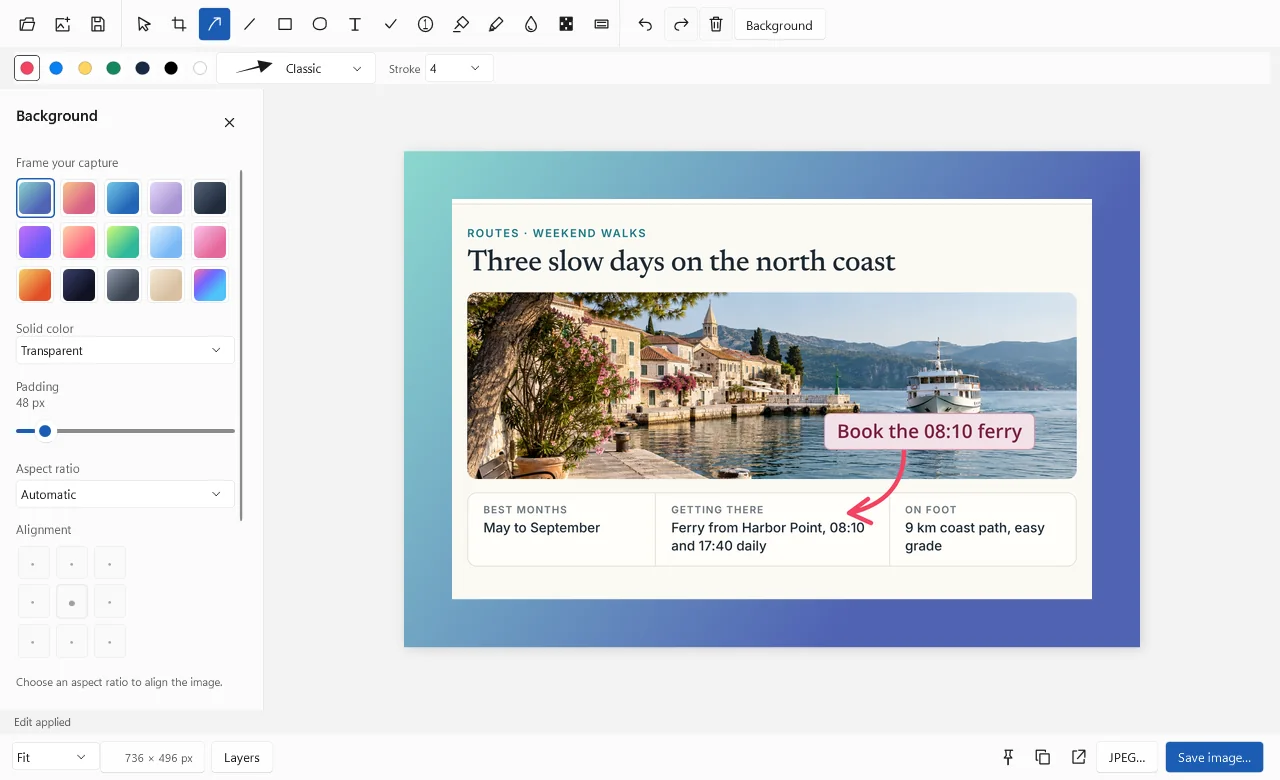
Make your point, fast.
Point with arrows, type notes right on the image and hide what shouldn't be shared. Every mark stays editable.
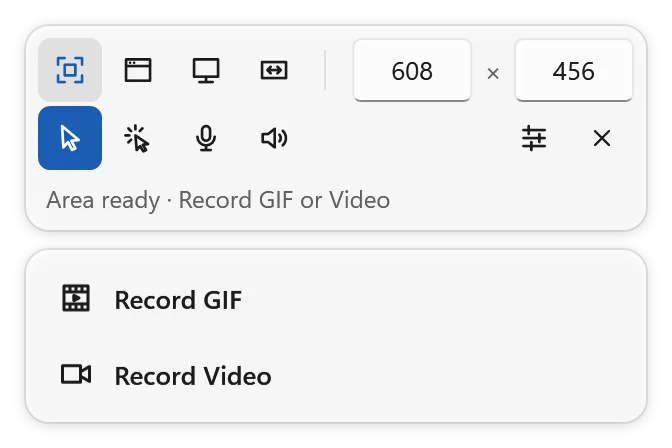
Screen recordings worth sharing.
Record an area, a window or a display in a few clicks, then share a crisp video or a quick GIF.
Scrolling capture
Capture full articles, long chats and documents that run past your screen, all in one tall image.
- Watch the image grow as you scroll
- Optional Auto-scroll
Background tool
Turn plain captures into polished images with backgrounds, padding, corners and shadow, ready to post anywhere.
- 15 gradients and solid colors
- Auto-balance centers your content
- Combine several screenshots in one image
Built for everyday Windows work.
Your captures are saved locally.
No account needed. Snipsera does not upload your captures, and the app has no analytics.
No account required
Install it and start capturing. There is nothing to sign up for.
Saved on your PC
Snipsera saves captures and history on your PC and does not upload them. Syncing or sharing files is your choice.
No app analytics
Update checks are optional and contact GitHub or the Microsoft Store.
Two ways to install.
Pick the one that suits you. Snipsera is free either way.
Microsoft Store
The simplest route. Install Snipsera straight from the Microsoft Store.
Get it from Microsoft StoreGitHub release
Opens the latest official release on GitHub, where you download the Windows installer. That installer is unsigned, so Windows may ask you to confirm before it runs.
Download from GitHubCommon questions
Is Snipsera free?
Yes. Snipsera is free and open source under the MIT license, and you do not need an account.
Which Windows PCs are supported?
PCs running Windows 11, 64-bit (x64).
Can it capture a long page?
Yes. Scrolling capture grabs a page that runs longer than your screen.
Can it record my screen and sound?
Yes. Record an area, a window or a display as MP4 or GIF, with pause and resume. MP4 recordings can include your microphone and computer audio.
Where are captures saved, and are they uploaded?
On your PC, with a local history of your latest 100 captures. Snipsera does not upload them. Syncing or sharing files is your choice.
How do updates work?
Update checks are optional. The Microsoft Store version updates through the Store, following your Store settings. If you installed from GitHub, get the newest version from the latest release page.